Recording strategic thinking and decisions
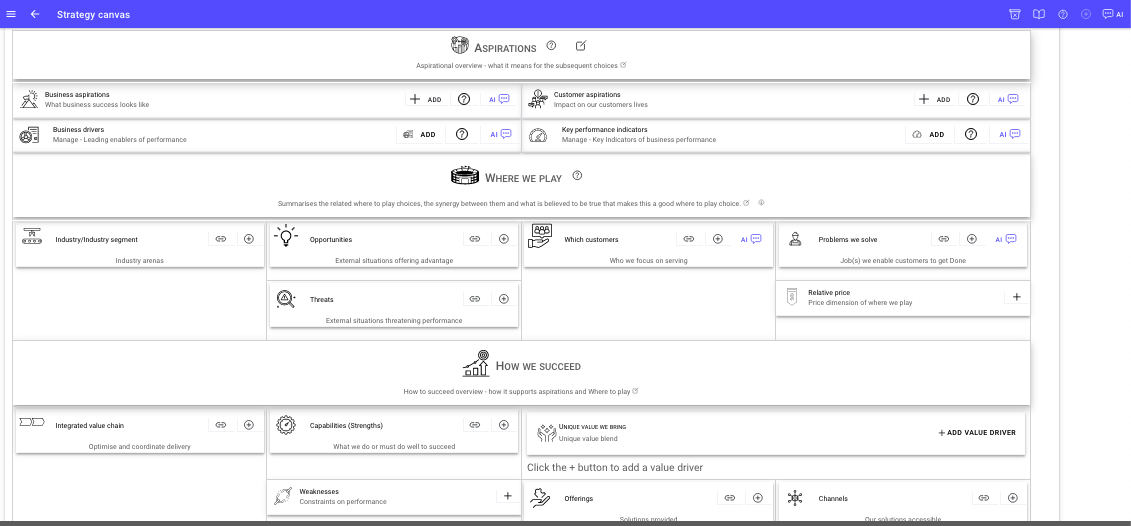
Canvases allow strategic leaders to map out the key components of their strategy including Strategic choices and related components e.g. Value delivery chain, offerings, capabilities, opportunities, threats, market segments, revenue streams, cost structure, and value proposition, in a clear and concise way. By using a canvas, business leaders can quickly and easily communicate strategy to stakeholders, identify gaps or areas for improvement, and iterate on their approach, without needing to update hefty documents. Canvases also provide a structured approach for analyzing the complex interplay between different elements of a business strategy and identifying trade-offs and dependencies.
"You can have brilliant ideas, but if you can't get them across, your ideas won't get you anywhere." Lee Iacocca
Canvases are a powerful tool for developing, communicating, and refining business strategies, and are widely used by startups, established businesses, and entrepreneurs alike.
In StrategyCAD your canvas operates in two different modes.
Idea - thinking mode
Decision - mode
In idea mode, which is perfect for collaborative discussions and brainstorming either as a team or separately, team members can post ideas and suggestions just like sticky notes on a wall.
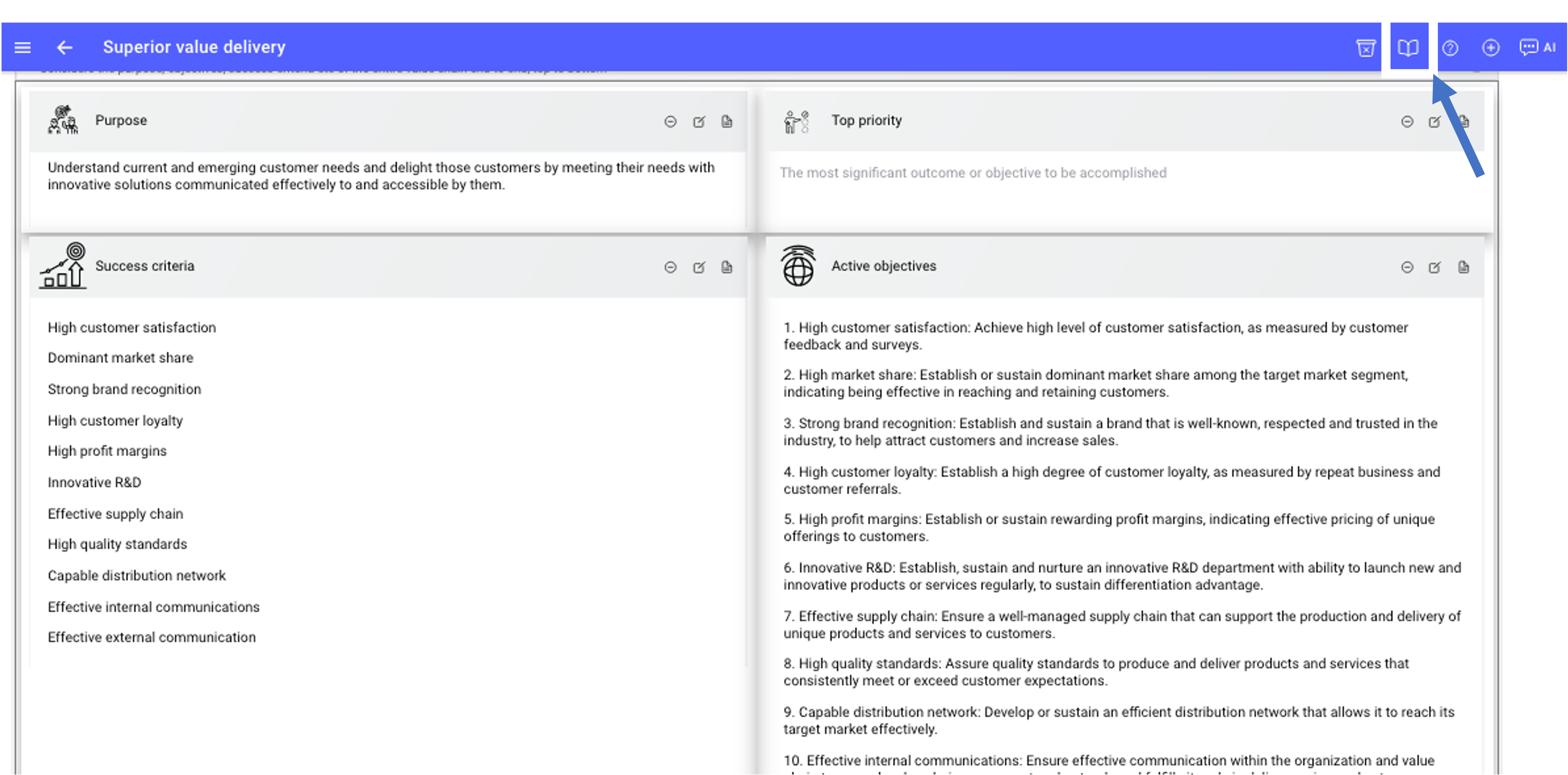
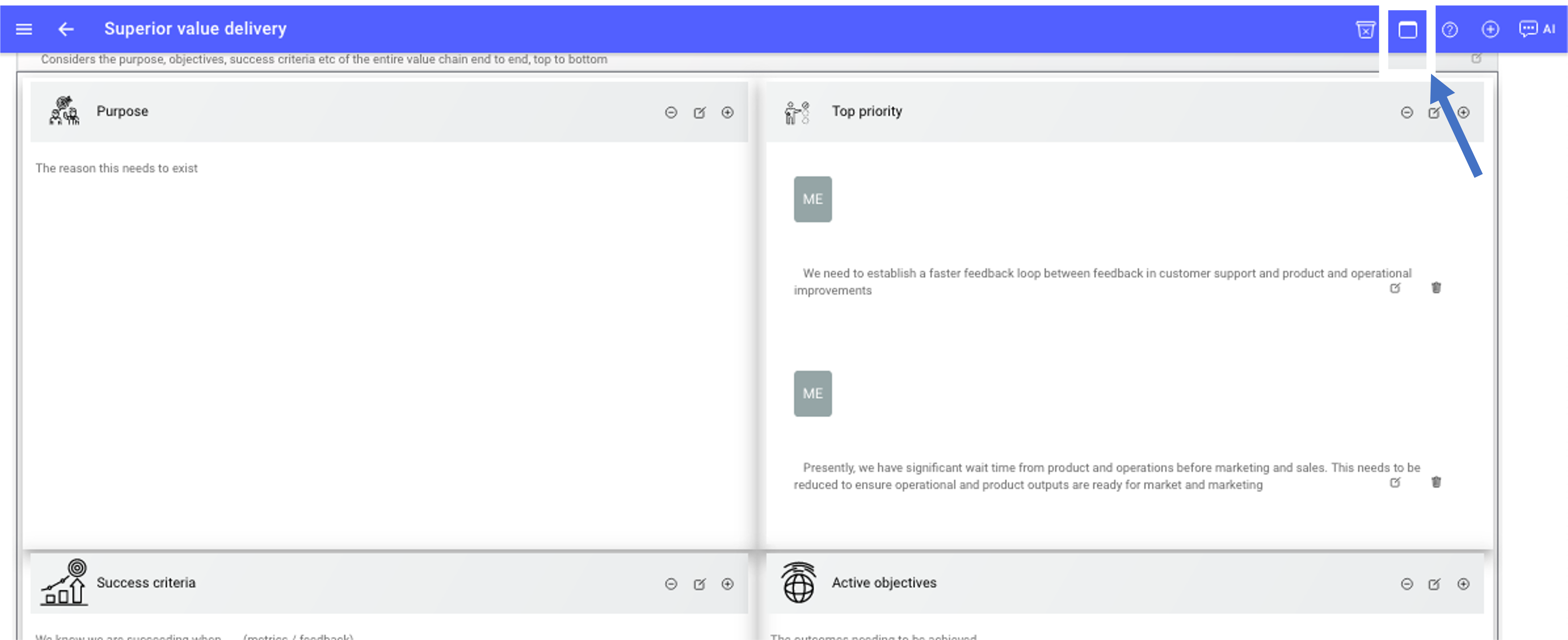
To toggle to idea / thinking mode click or tap the icon as shown in the screenshot above.
Any notes will then immediately show up and can be used to review and guide decisions for that section of the canvas.
To add a note - click or tap the + icon on the far right of the canvas header section.
To change the heading e.g. to change Top Priority to Important improvements - click or tap the middle edit icon
Removing attributes or sections you do not want on the canvas
If you want to remove attribute because it is unnecessary, then you can click or tap the inner-most (left) remove icon or use the configuration editor as described below.
In decision mode, which is perfect for communicating the decision of current content for a section of the canvas.
To toggle to decision mode click or tap the icon as shown in the screenshot above.
Any notes will then immediately disappear up and the decision content will be visible.
To add a decision content - click or tap the icon on the far right of the
canvas header section.
To change the heading e.g. to change Top Priority to Important
improvements - click or tap the middle edit icon.
Removing attributes or sections you do not want on the canvas.
If you want to remove attribute because it is unnecessary, then you can click or tap the inner-most (left) remove icon or use the configuration editor as described below.
If you have removed a section and would like to add it back in.
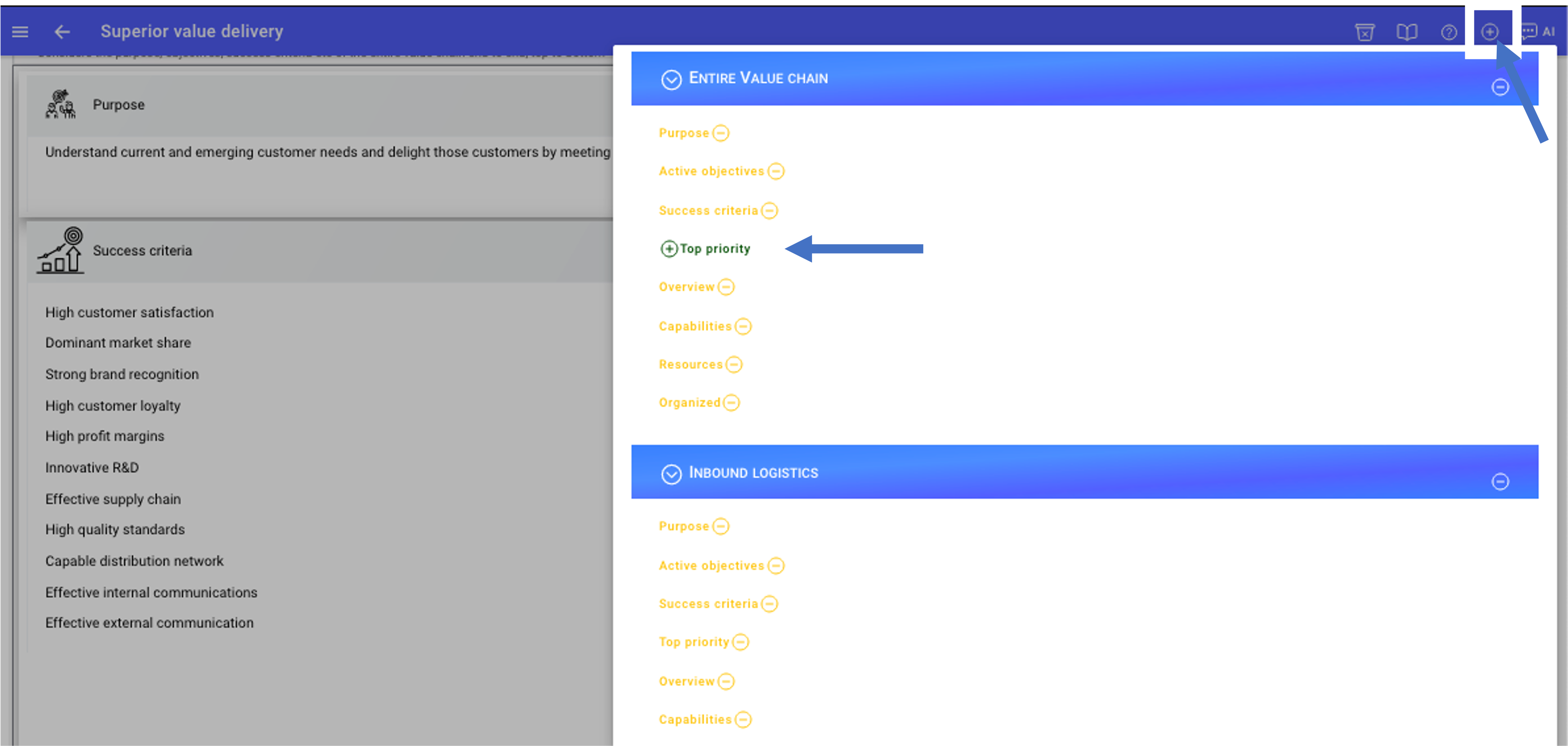
Click the add configuration icon at the top left of the screen
Attributes which on not on the canvas will show up with a + icon and green indicating they can be added.
To restore an attribute to the canvas click or tap the green + icon.
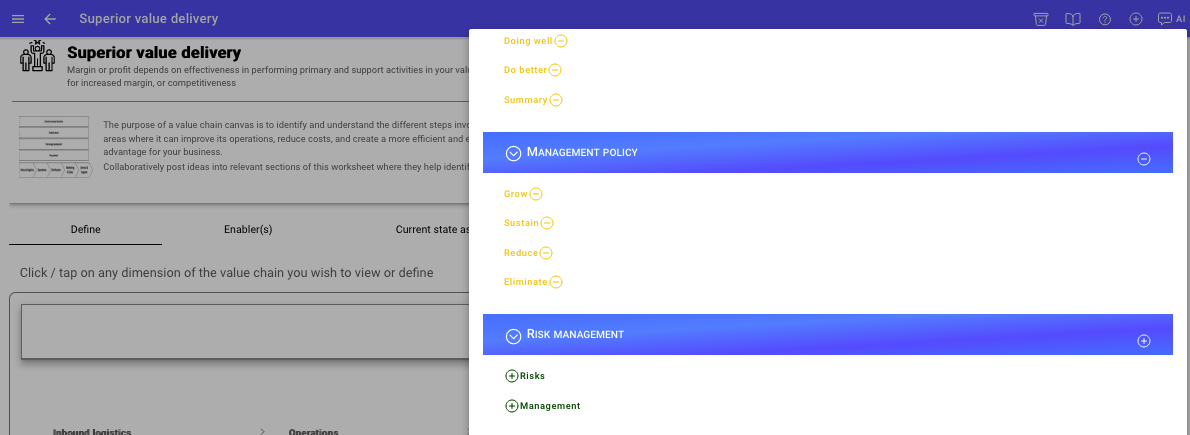
If you have previously removed an entire section then the + icon will show on the section. You can add the section back and then remove any individual attributes. So here the person would add Risk management back, but if the did not want the Management attribute then they could remove that individual attribute.
Attributes in Yellow with - icon can clicked or tapped and removed from the canvas.
Removing or adding entire canvas sections
You can add back in or remove entire sections by tapping the icon on the blue section banners
In this screenshot example the Risk management section has been removed. You can identify this as there is a + icon meaning it can added back in and each of its attributes are also green.
If you wanted to add Risks back in but not management. You would add the section back in. Then remove the management attribute.